
Office Address
Berge du Lac, La Marsa |
Tunis, Tunisie
Phone Number
+216 95 038 819
Email Address
technologyelevator02@gmail.com
contact@technologyelevator.com
Berge du Lac, La Marsa |
Tunis, Tunisie
+216 95 038 819
technologyelevator02@gmail.com
contact@technologyelevator.com


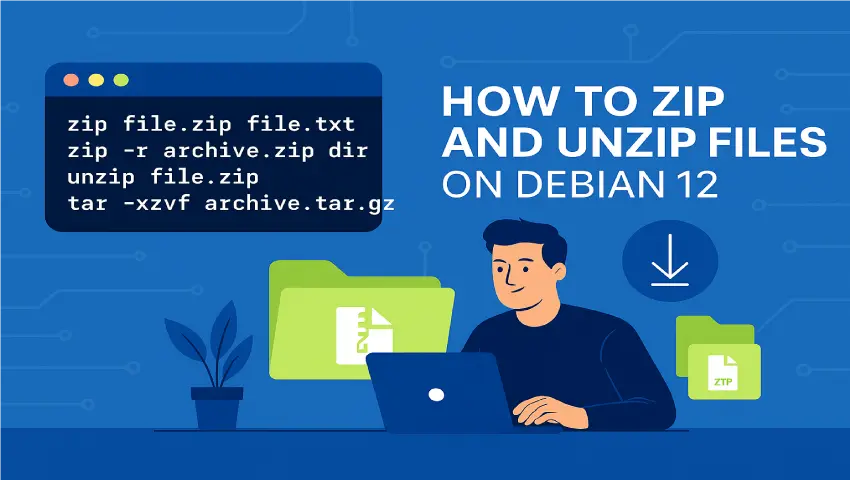
 by Adel Adouni
 Compressing files is a fundamental skill for any Linux user, especially when dealing with backups, file transfers, or organizing large directories. On Debian 12, zipping and unzipping files is straightforward using built-in tools and the command line. In this tutorial, we’ll walk you through the most common methods for compressing and extracting files on Debian 12 using zip, unzip, and tar.
zip package (if not already installed)sudo apt update
sudo apt install zipzip archive-name.zip file.txt
This creates a archive-name.zip containing file.txt
zip my-archive.zip file1.txt file2.txt image.jpgzip -r folder.zip /path/to/folderThe -r flag enables recursive compression of all contents in the folder.
unzip packagesudo apt install unzip
unzip archive-name.zipunzip archive-name.zip -d /path/to/extract/.tar.gz and .tar.bz2 ArchivesTarballs are very common in Linux environments.
Create a .tar.gz Archive
tar -czvf archive-name.tar.gz folder/Extract a .tar.gz Archive
tar -xzvf archive-name.tar.gzCreate a .tar.bz2 Archive
tar -cjvf archive-name.tar.bz2 folder/Extract a .tar.bz2 Archive
tar -xjvf archive-name.tar.bz2Tip:
Usev(verbose) to display file names during compression/extraction.
✅ Use -9 with zip for maximum compression:
zip -9 best-compression.zip file.txt✅ List contents of a zip file before unzipping:
unzip -l archive-name.zip
Whether you're managing backups, transferring files, or simply organizing data, knowing how to zip and unzip files on Debian 12 is a vital skill. With just a few commands, you can harness the power of compression and streamline your Linux workflow.
At Technology Elevator, we help businesses and tech teams thrive through expert Linux administration, secure server deployment, cloud architecture, and custom automation solutions.
Need professional assistance?
👉 Contact us today and elevate your infrastructure!